Parse OpenAI API responses on bubble.io easily
You’ve created your own GPT agent and finally got the answer you needed… but there’s a problem:
the response comes back as plain text.
Manually parsing GPT’s text output is annoying and error-prone. In this blog post, I’ll show you how to automatically convert GPT responses into structured JSON using the API Connector.
This allows you to use GPT outputs as real data types inside your app instead of raw text.
What are we going to build?
We will:
- Create a backend workflow that converts a text response into a JSON structure
- Initialize a data type using the API Connector
- Call the API connection and use GPT parameters as structured fields
Step 1: Create a Backend Workflow to Convert Text into JSON
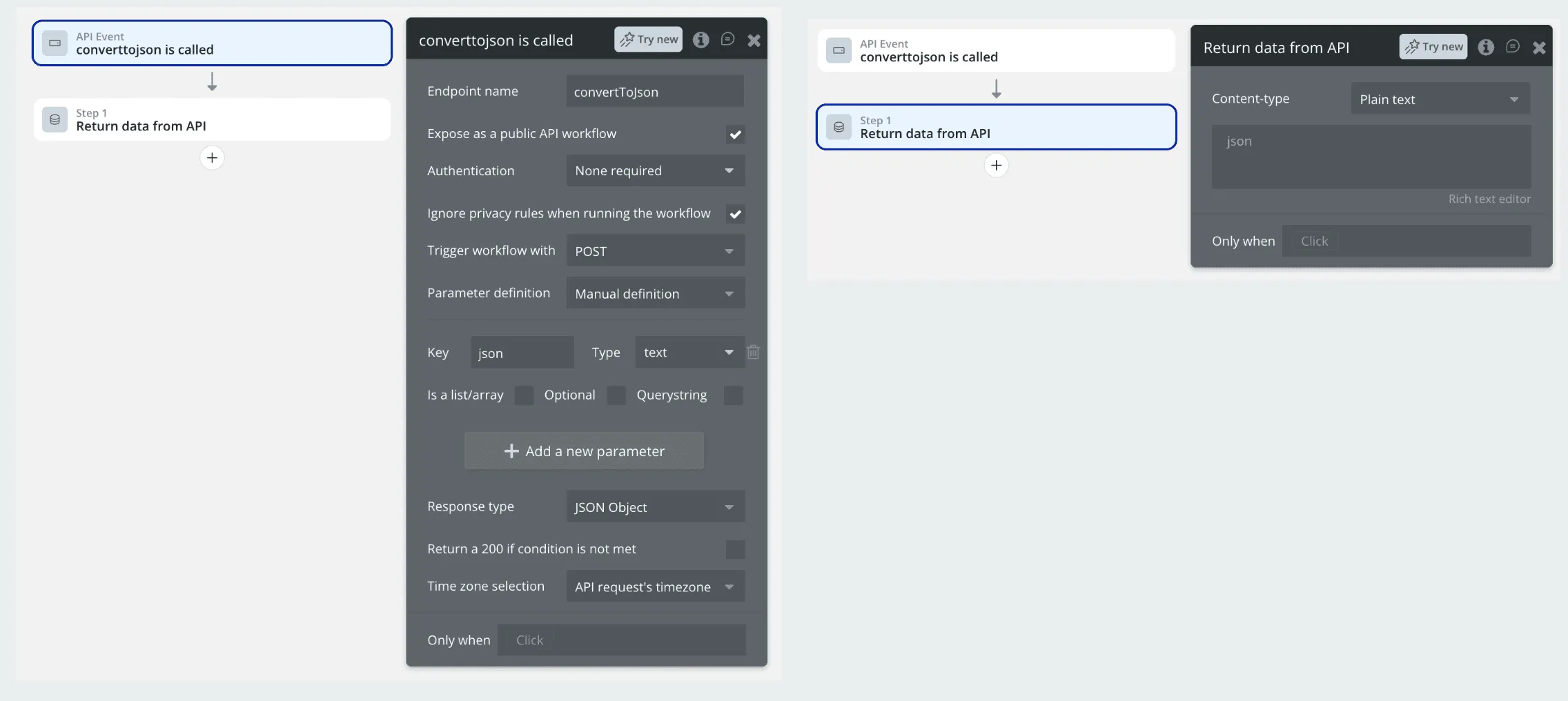
Go to Backend Workflows and create a new API workflow.
- Name it:
converttojson - Add one parameter:
- Name:
json - Type:
text
- Name:
This parameter will receive the GPT output formatted as JSON-safe text.
Make sure this workflow is:
- Exposed to the public (authentication is optional for this tutorial)
This workflow will act as a bridge between GPT’s text output and your app’s JSON structure.
Step 2: Initialize Your Data Type Using the API Connector
First, make sure you have the API Connector plugin installed.
Now:
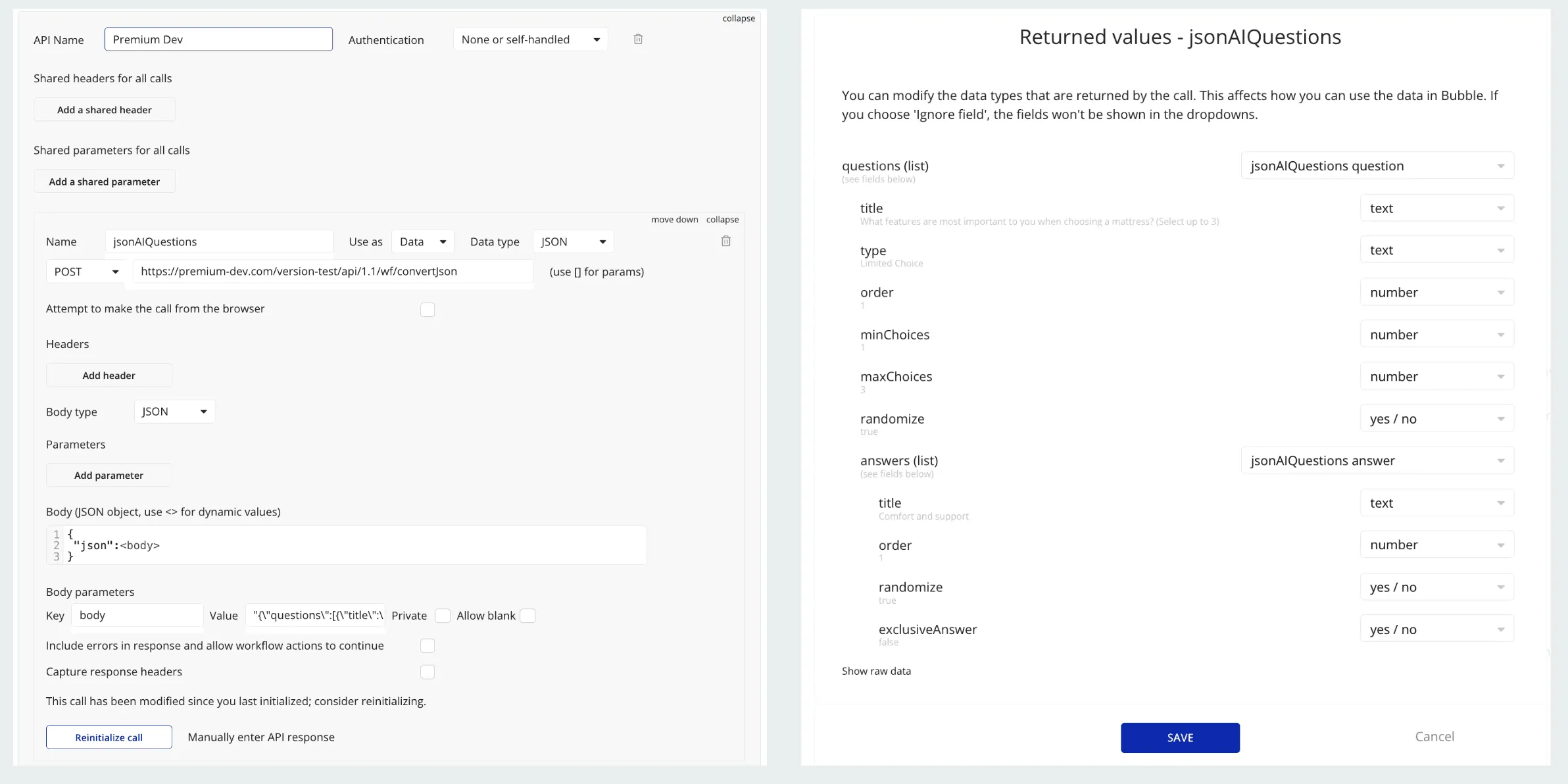
- Create a new API connection and name it after your app
- Add a new POST request
- Use your workflow’s root API URL:
- You can find it at:
Settings > API > API and Backend Workflows
- You can find it at:
- Append
/converttojsonto the URL - In the request body, add only one parameter:
json
Important:
When initializing this API call, use GPT output that is formatted as JSON-safe.
Step 3: Use Your New API Connection
Now you can:
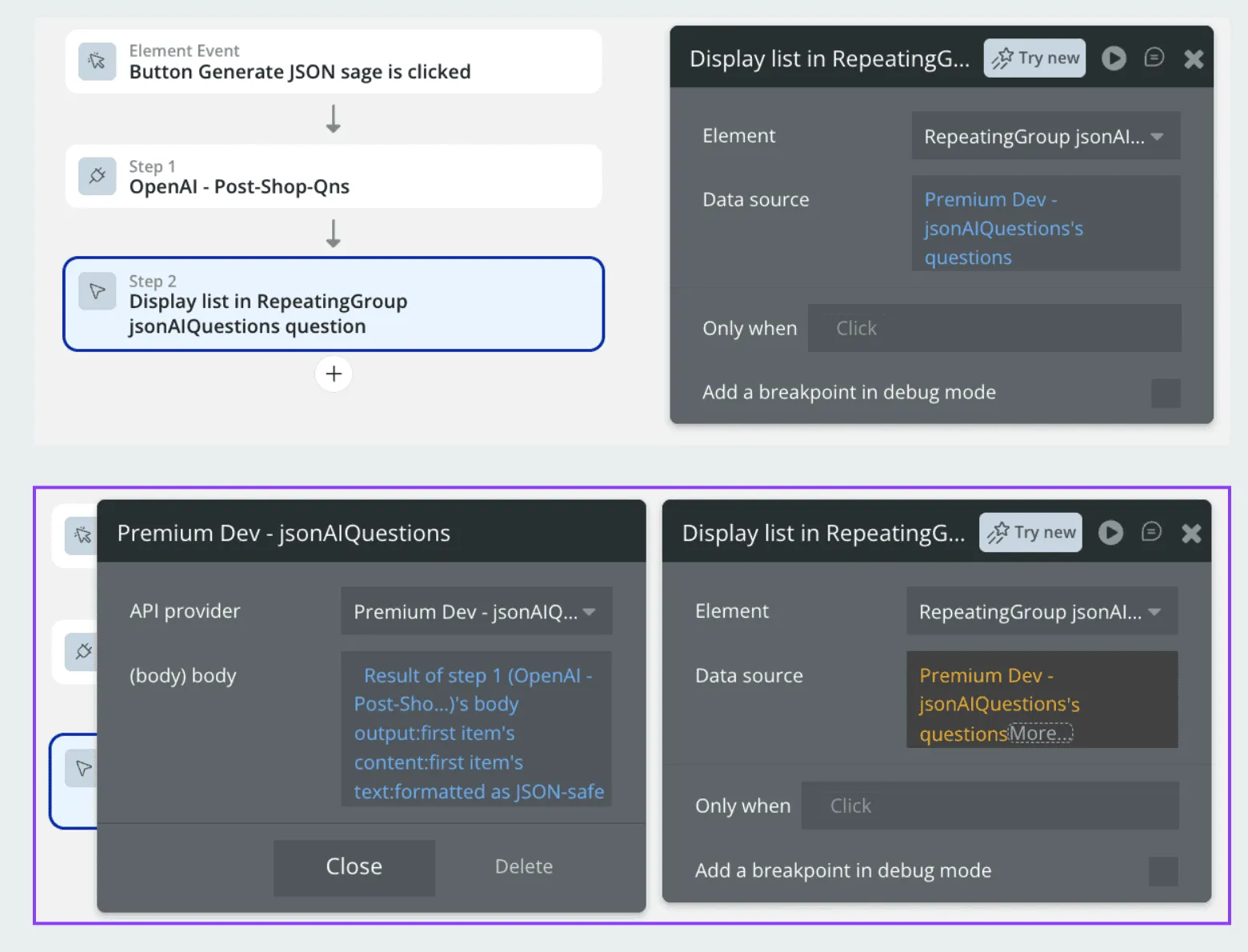
- Feed GPT’s JSON-safe output into your API connection
- Automatically convert it into structured JSON
- Use each field directly in your app
In the example shown in the image, I retrieve external data from an API, send it to GPT, and then pass GPT’s response into the new API connection to make it usable as structured data.
Final Result
You no longer need to manually parse GPT responses.
You can now treat GPT output as a normal data type and use it anywhere in your application.
Hopefully this helped you!
If you have any questions, feel free to email me at: